TABLE OF CONTENTS
- Logging On
- Uploading Files
- How many assets can be uploaded?
- Check the status of your uploads
- How to request support
Download the printable version.
Logging On
- Returning Users?
Navigate to https://promo-pbs.mediashuttle.com/ - First Time Media Shuttle User?
Click on the “Activate Account” link in the email invitation.
Enter your email address.
When prompted, create a password. - First Time Submitting Short Form Assets to Media Shuttle?
Look for email : "You are now a member of the Promotional Artifact Portal".
Click the link:https://promo-pbs.mediashuttle.com/
PBS PROMO VIDEO FILE AND TITLE NAMING CONVENTION
It is required you name your promo files this way before uploading!
They must match the title exactly
Series_Program_Season_Episode_Asset Type_Version_Duration
Examples:
- NOVA_Meteor Strikes_Episodic Promo_Cobrand Clean_30
- GPER_3710_Twilight Los Angeles_Episodic Promo_Cobrand Clean_30
- Sunday Lineup_Fall 2021_10-24-21_Combo Promo_Cobrand Clean_30.mov
Uploading Files
Step 1. Do you have multiple assets for the same show?
- Click the Add Files button browse to select your files to upload
- Or drag and drop

- Click the "Add Info" button.

Step 2. Provide basic information for the asset(s).
- Promo assets only - Copy and paste the provided Submission ID - This ID links your files to the show title.
- Non-promo assets - provide any number for submission ID - for example you can add 0.
- Then, specify the Show Catalog to which the asset/s belongs to.

Step 3. Specify the asset type.
The choices are video, audio, image, or document. Click on each tab to select an asset type.
- Then, Specify the asset details. Examples: Video > Promo OR Image > Banner
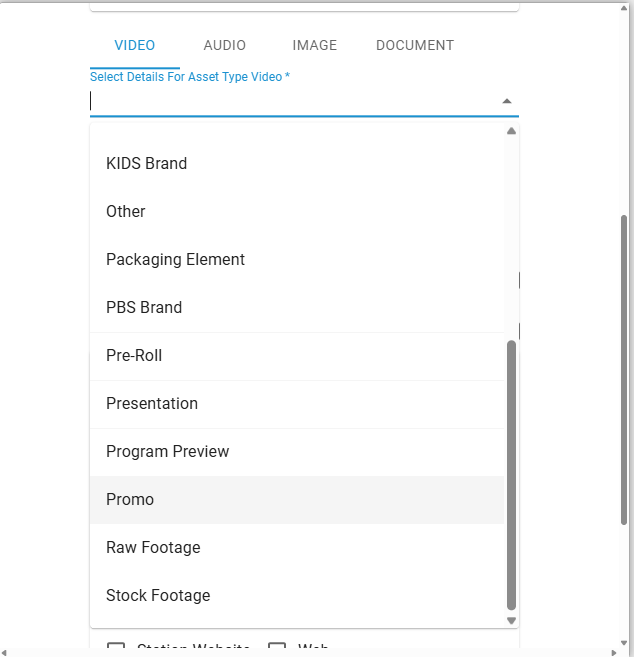 | 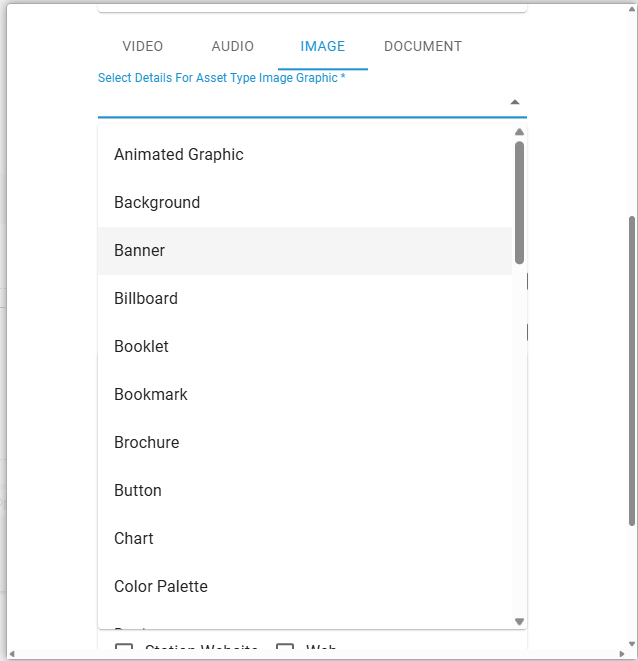 |
Step 4. Specify if the promo can be used for the life of the show.
- If stations can use this promo before the show rights start,
select In Perpetuity. - Otherwise, select Specific Usage Date then input the start/end date.
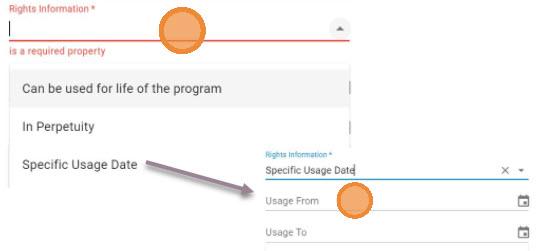

Step 6. Specify the asset descriptions - only for non-Promo assets.
Provide detailed description for non-promo assets - such as images, documents, graphics.
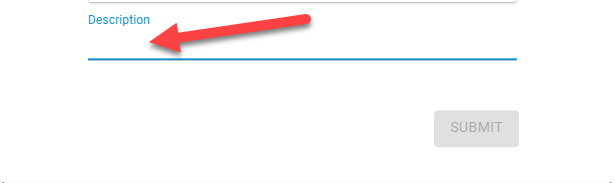
How many assets can be uploaded?
Tip! Repeat steps 1 - 6 as often as needed.
Check the status of your uploads
- Click the “My Transfers” button located at the top right.

How to request support
- Click on ? icon.
- Then, Click Contact Admin
- Add your question or concern and The Source support team will respond.

Was this article helpful?
That’s Great!
Thank you for your feedback
Sorry! We couldn't be helpful
Thank you for your feedback
Feedback sent
We appreciate your effort and will try to fix the article